Tuesday, May 31, 2022

GPG error: "public key is not available" in Ubuntu

For both server and container:

Official solution

https://developer.nvidia.com/blog/updating-the-cuda-linux-gpg-repository-key/

Remove the outdated signing key

Debian, Ubuntu, WSL

$ sudo apt-key del 7fa2af80

Install the new key

For Debian-based distributions, including Ubuntu, you must also install the new package or manually install the new signing key.

Install the new cuda-keyring package

To avoid the need for manual key installation steps, NVIDIA is providing a new helper package to automate the installation of new signing keys for NVIDIA repositories. 

Replace $distro/$arch in the following commands with values appropriate for your OS; for example:

  • ubuntu1604/x86_64
  • ubuntu1804/cross-linux-sbsa
  • ubuntu1804/ppc64el
  • ubuntu1804/sbsa
  • ubuntu1804/x86_64
  • ubuntu2004/cross-linux-sbsa
  • ubuntu2004/sbsa
  • ubuntu2004/x86_64
  • ubuntu2204/sbsa
  • ubuntu2204/x86_64
  • wsl-ubuntu/x86_64

Debian, Ubuntu, WSL

$ wget https://developer.download.nvidia.com/compute/cuda/repos/$distro/$arch/cuda-keyring_1.0-1_all.deb
$ sudo dpkg -i cuda-keyring_1.0-1_all.deb

Common issues and solutions on Debian-based distros

Here are some common errors that we’ve helped people with. If you see an error not listed here, please comment below.

Duplicate .list entries

{{E: Conflicting values set for option Signed-By regarding source
https://developer.download.nvidia.com/compute/cuda/repos/ubuntu1804/x86_64/ /: 
/usr/share/keyrings/cuda-archive-keyring.gpg !=
E: The list of sources could not be read.}}

Solution: If you previously used add-apt-repository to enable the CUDA repository, then remove the duplicate entry.

sudo sed -i '/developer\.download\.nvidia\.com\/compute\/cuda\/repos/d' /etc/apt/sources.list

Also check for and remove cuda*.list files under the /etc/apt/sources.d/ directory.

----------------------------------------------

Error

Err:6 http://packages.microsoft.com/repos/azurecore focal InRelease

  The following signatures couldn't be verified because the public key is not available: NO_PUBKEY EB3E94ADBE1229CF

Reading package lists... Done

W: GPG error: http://packages.microsoft.com/repos/azurecore focal InRelease: The following signatures couldn't be verified because the public key is not available: NO_PUBKEY EB3E94ADBE1229CF

Solution

sudo apt-key adv --keyserver hkp://keyserver.ubuntu.com:80 --recv-keys

EB3E94ADBE1229CF

Problem in docker

RUN sudo apt-key adv --fetch-keys https://developer.download.nvidia.com/compute/cuda/repos/ubuntu2004/x86_64/3bf863cc.pub

or 


RUN wget https://developer.download.nvidia.com/compute/cuda/repos/$distro/$arch/cuda-keyring_1.0-1_all.deb
RUN sudo dpkg -i cuda-keyring_1.0-1_all.deb


Update 2023-0705

Error:

gpgkeys: key F60F4B3D7FA2AF80 not found on keyserver


The solution is:
wget -qO - https://developer.download.nvidia.com/compute/cuda/repos/ubuntu1804/x86_64/7fa2af80.pub | sudo apt-key add -

as documented here: https://developer.nvidia.com/cuda-downloads -> Linux -> x86_64 -> Ubuntu -> 18.04 -> deb (network)


Conflict key error for "sudo apt update", can not find in source

E: Conflicting values set for option Signed-By regarding source https://developer.download.nvidia.com/compute/cuda/repos/ubuntu1804/x86_64/ /: /usr/share/keyrings/cuda-archive-keyring.gpg !=

Solution 1:
remove /etc/apt/source.list.d/cuda*, /etc/apt/source.list.d/nccl*
del cuda_key

Solution 2:

sed -i '/developer\.download\.nvidia\.com\/compute\/cuda\/repos/d' /etc/apt/sources.list.d/*
sed -i '/developer\.download\.nvidia\.com\/compute\/machine-learning\/repos/d' /etc/apt/sources.list.d/*

from:

https://askubuntu.com/questions/1424040/e-conflicting-values-set-for-option-signed-by-regarding-source-https-develope/1424054#1424054


Thursday, April 8, 2021

git submodule


Already in git repo

git submodule update --init --recursive.


Update remotely


Since git 1.8 you can do

git submodule update --remote --merge

This will update the submodule to the latest remote commit. You will then need to commit the change so the gitlink in the parent repository is updated

git commit

Change 'eol' for all files from CLRF to LF in Visual Studio Code


git config core.autocrlf false 
git rm --cached -r . 
git reset --hard

Tuesday, December 1, 2020

Mount linux partition to windows


Local Windows access remote Linux with samba


在linux服务器上配置samba,有两种方式:share方式,user方式。

1. share方式:也就是访问共享文件夹时不需要输入共享文件夹的密码,所有guest都能访问。这种不需要密码的访问当然不安全,但是很方便,也是比较常用的方式。配置步骤如下:

(1) Install samba
sudo apt-get install samba
(2)配置samba
sudo vi /etc/samba/smb.conf
打开这个文件后,按如下添加信息:
[share]
comment = yangxxxx samba share dir
path = /home/wxxhxx/share
browseable = yes
guest ok = yes
create mask = 0777
writable = yes
在这里插入图片描述
注意:这里的写权限单词不要拼写错了writable。
注意:samba版本,我是samba4.7,其中已经没有security = share这种写法了,有的网上资料里都会配置这个参数,这是以前的写法,samba4里面用的是map to guest = Bad User。
保存配置。
(3)重启samba服务:sudo /etc/init.d/smbd restart
(4) windows下访问:
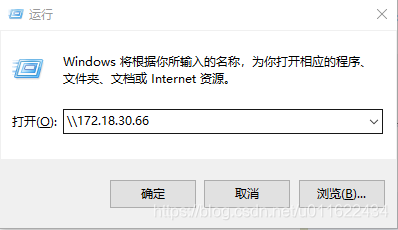
win+r打开这面运行框,输入linux的ip地址后点确定。
在这里插入图片描述
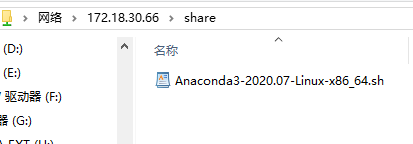
可以看到linux下创建的share共享文件夹,因为我开通了所有权限,所以在这里啥都可以干,新建、修改、删除文件都可以。
在这里插入图片描述


2.user方式:也就是指定的user才有权访问共享文件夹。配置步骤如下:

(1)首先要创建samba user
sudo useradd yangxxsmb (这个名字自定义)
sudo smbpasswd -a yangxxsmb (给这个用户设置访问密码,自定义一个密码,系统会要求输入两边密码,密码自己要记好不然访问不了共享文件夹了。)
(2)samba配置
sudo vi /etc/samba/smb.conf
打开文件,按如下配置,没有的就手动添加。
[share]
comment = yangxxxx samba share dir
path = /home/wxxhxx/share
browseable = yes
writable = yes
valid users = yangxxsmb

(3)重启samba服务
sudo /etc/init.d/smbd restart
(4) windows访问共享文件夹
win+r打开这面运行框,输入linux的ip地址后点确定。
在这里插入图片描述
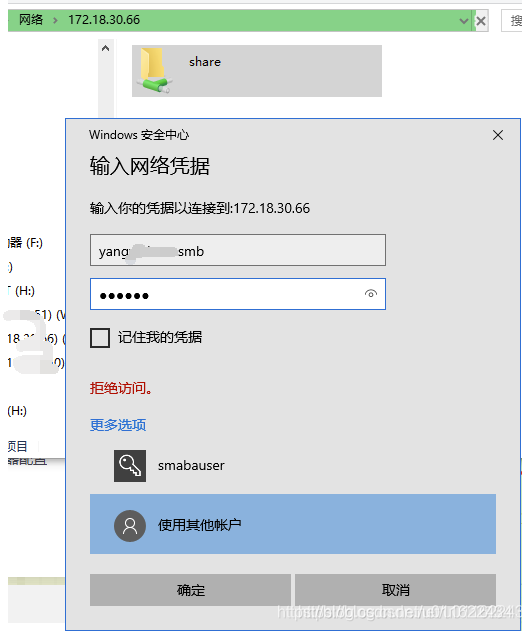
可以看到share文件夹,但是要访问时需要输入用户名和密码,就是步骤(2)中设置的用户名和密码,输入之后就可以访问了,也可以在里面新建、修改、删除文件。
在这里插入图片描述

Fix docker: Got permission denied while trying to connect to the Docker daemon socket

 According to the official Docker docs here:

https://docs.docker.com/install/linux/linux-postinstall/#manage-docker-as-a-non-root-user

You need to do the following:

To create the docker group and add your user:

  • Create the docker group.
sudo groupadd docker
  • Add your user to the docker group.
sudo usermod -aG docker ${USER}
  • You would need to loog out and log back in so that your group membership is re-evaluated or type the following command:
su -s ${USER}
  • Verify that you can run docker commands without sudo.
docker run hello-world
  • This command downloads a test image and runs it in a container. When the container runs, it prints an informational message and exits.

  • If you initially ran Docker CLI commands using sudo before adding your user to the docker group, you may see the following error, which indicates that your ~/.docker/ directory was created with incorrect permissions due to the sudo commands.

WARNING: Error loading config file: /home/user/.docker/config.json -
stat /home/user/.docker/config.json: permission denied
  • To fix this problem, either remove the ~/.docker/ directory (it is recreated automatically, but any custom settings are lost), or change its ownership and permissions using the following commands:
sudo chown "$USER":"$USER" /home/"$USER"/.docker -R
sudo chmod g+rwx "$HOME/.docker" -R